Turn your sketch into an editable vector
Manually creating vector CADs takes time. Sketch Trace does it in seconds.
Sketch Trace turns your raster sketch into editable vector artwork. Open it in Illustrator to change colors, add prints or adjust details, without having to redraw from scratch.
Works with Illustrator and any program that opens SVG files.
Works across product categories
Trace footwear, homeware and accessories as well as clothing.
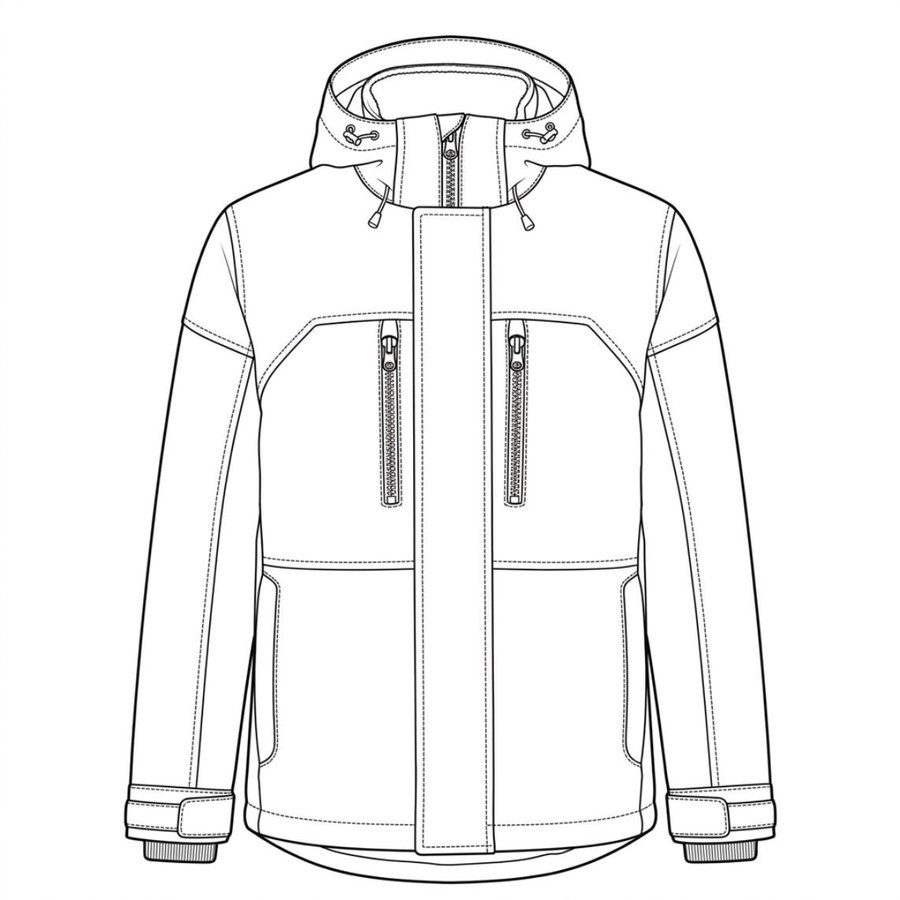
Apparel
Download traced SVG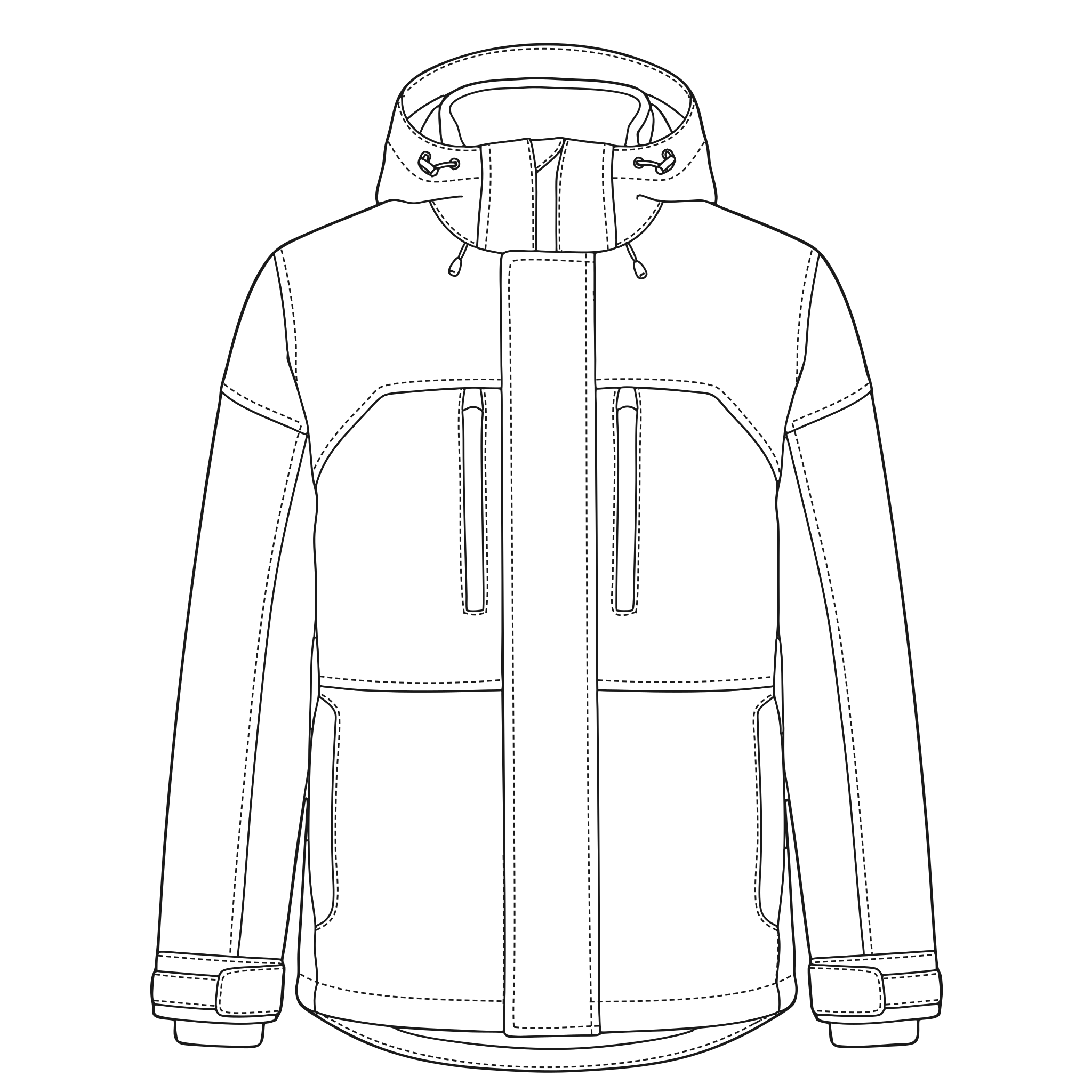
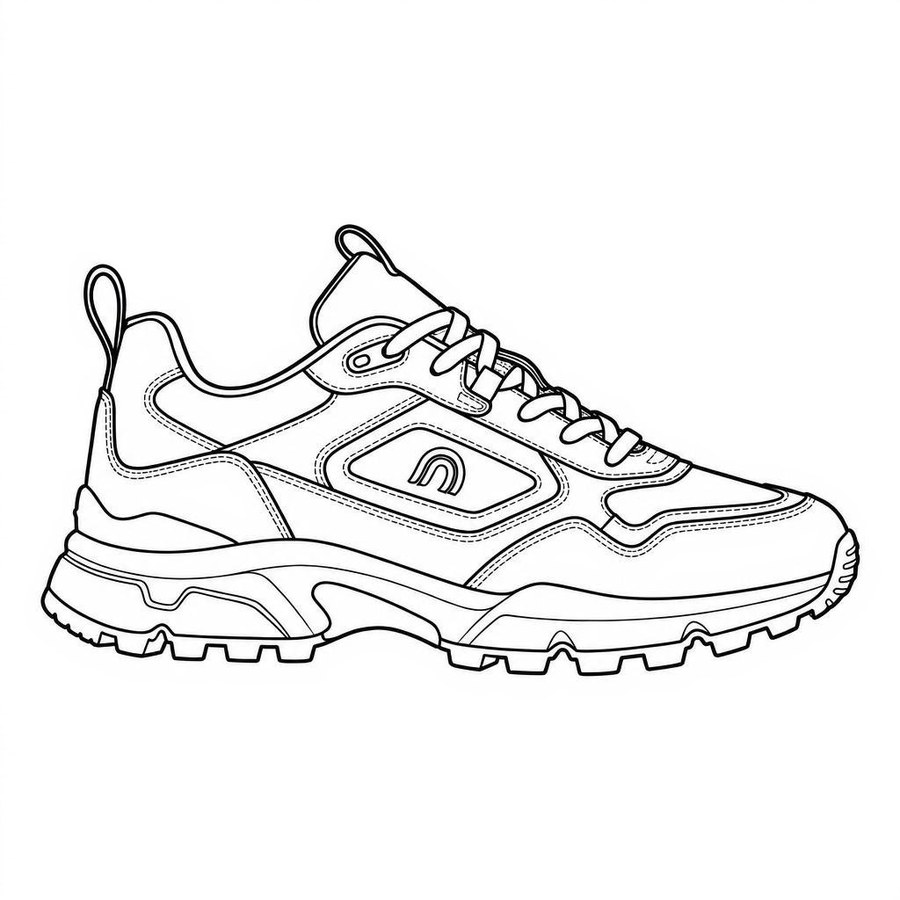
Footwear
Download traced SVG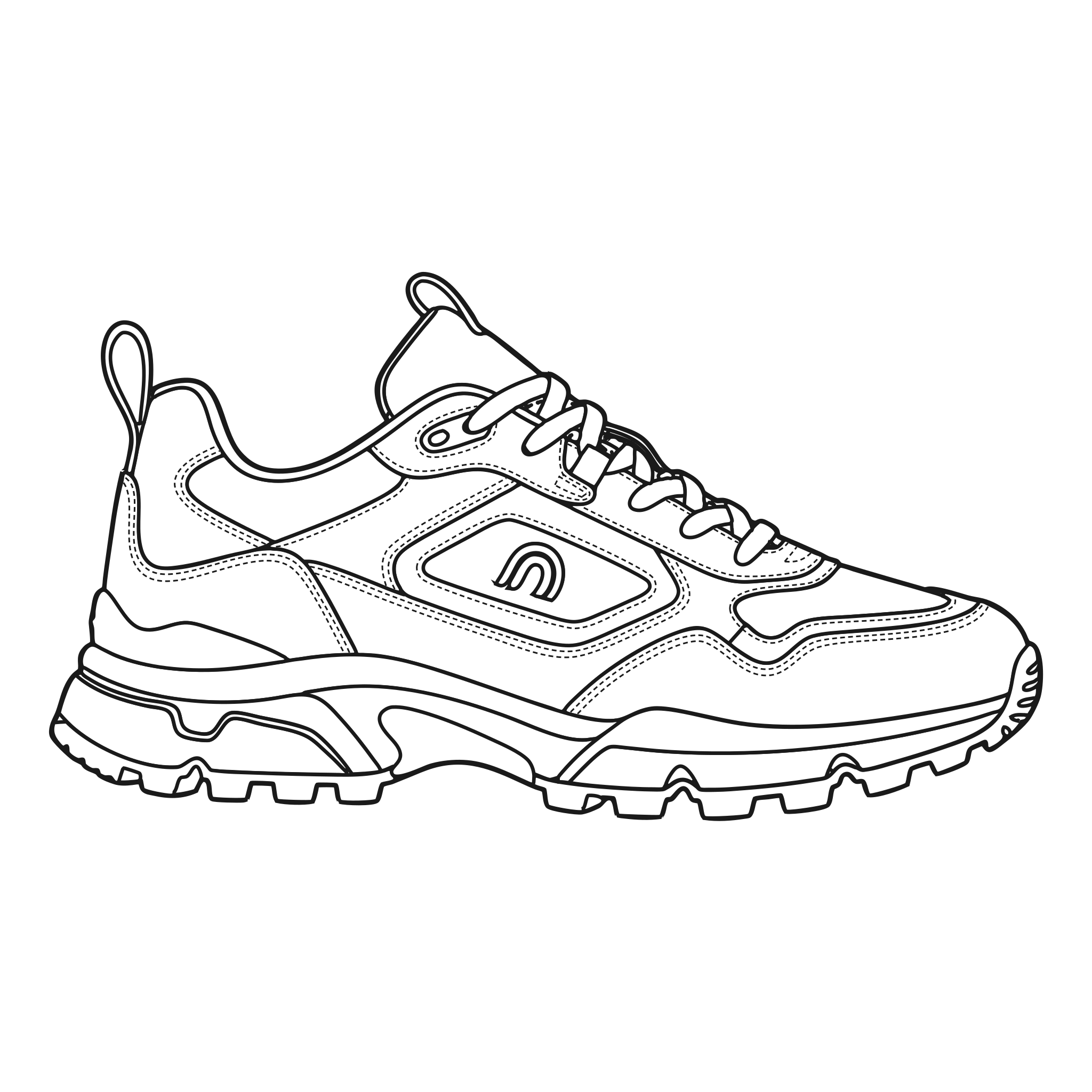
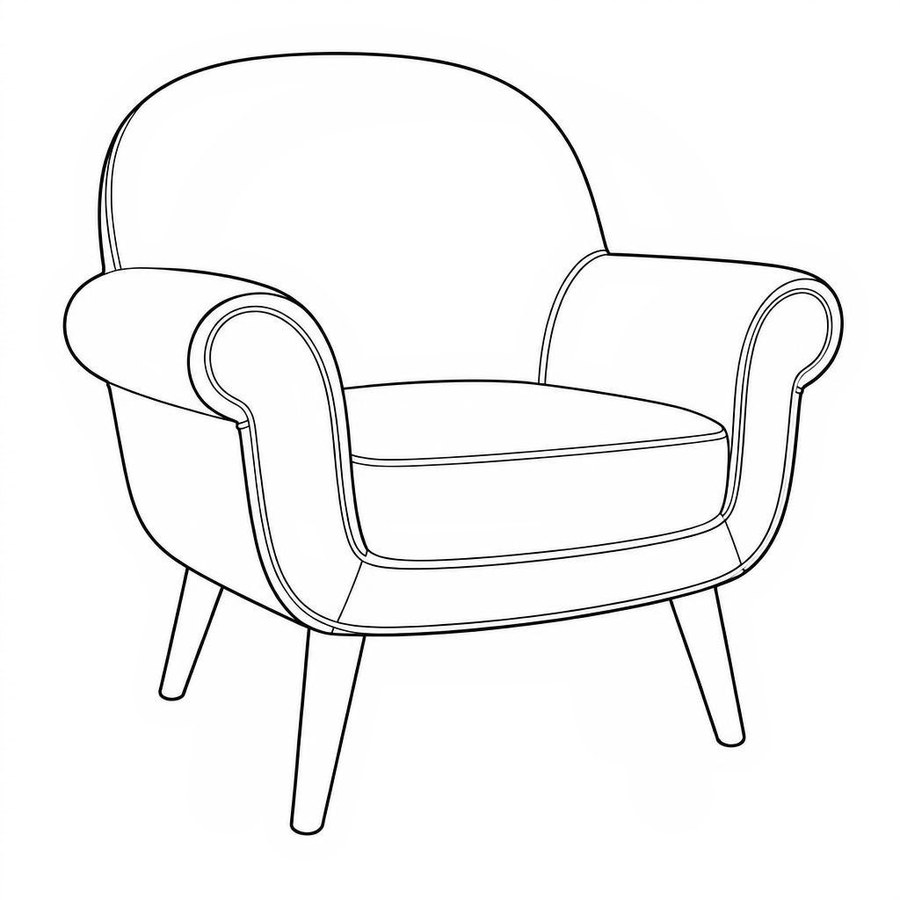
Homeware
Download traced SVG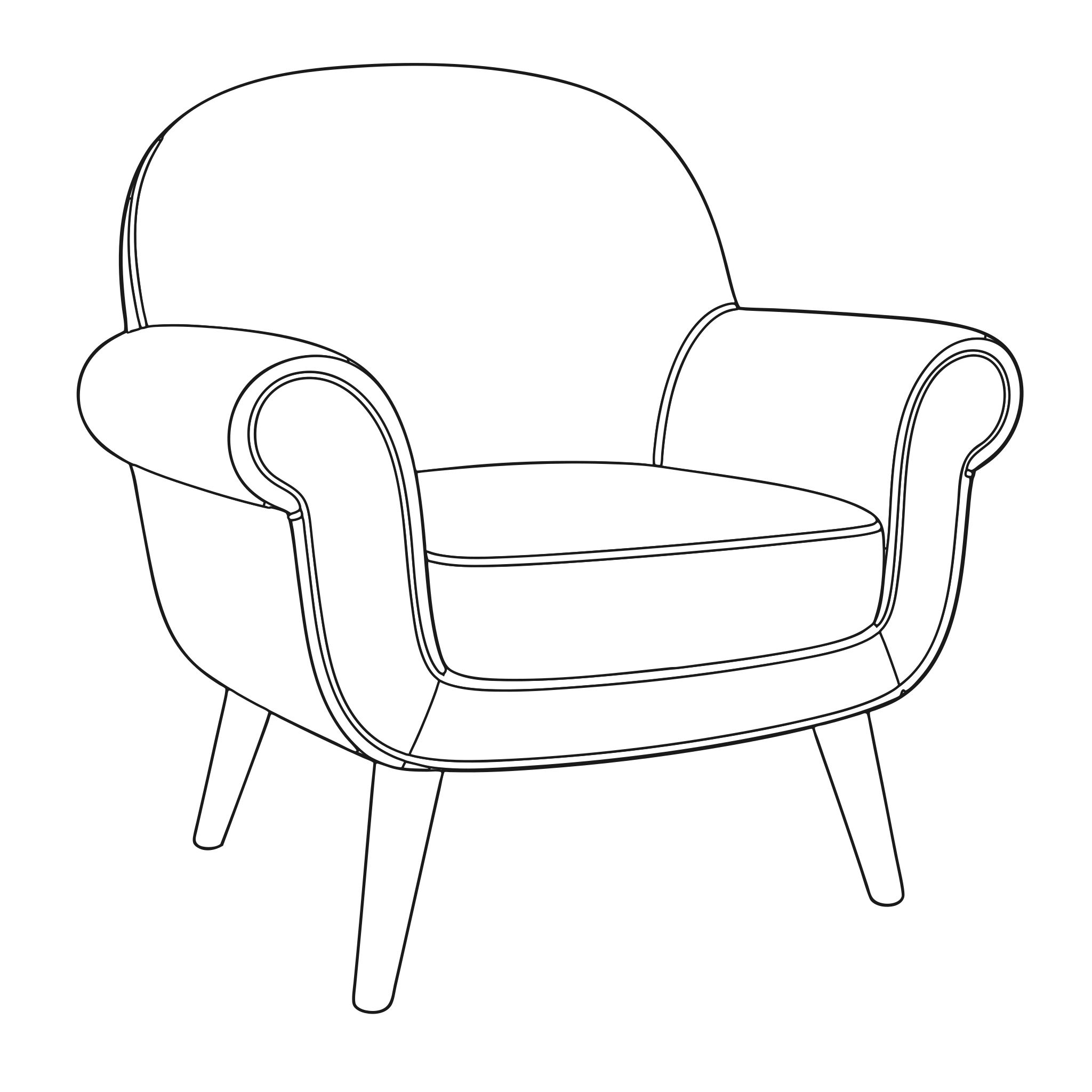
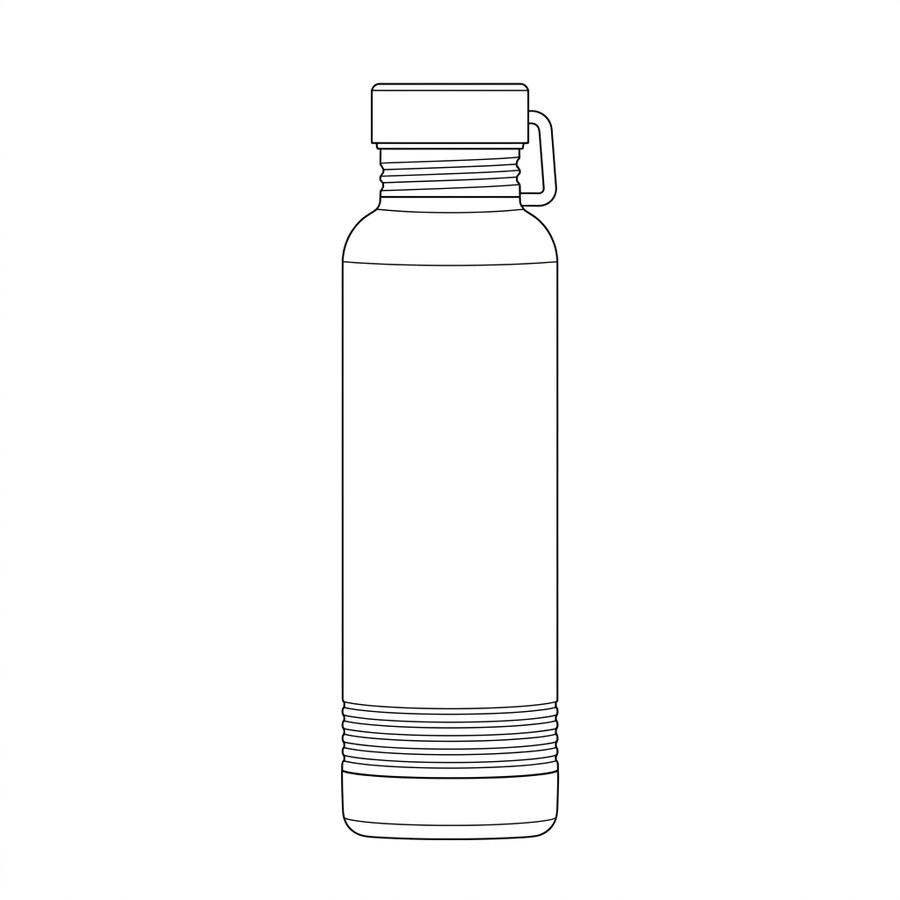
Accessories
Download traced SVG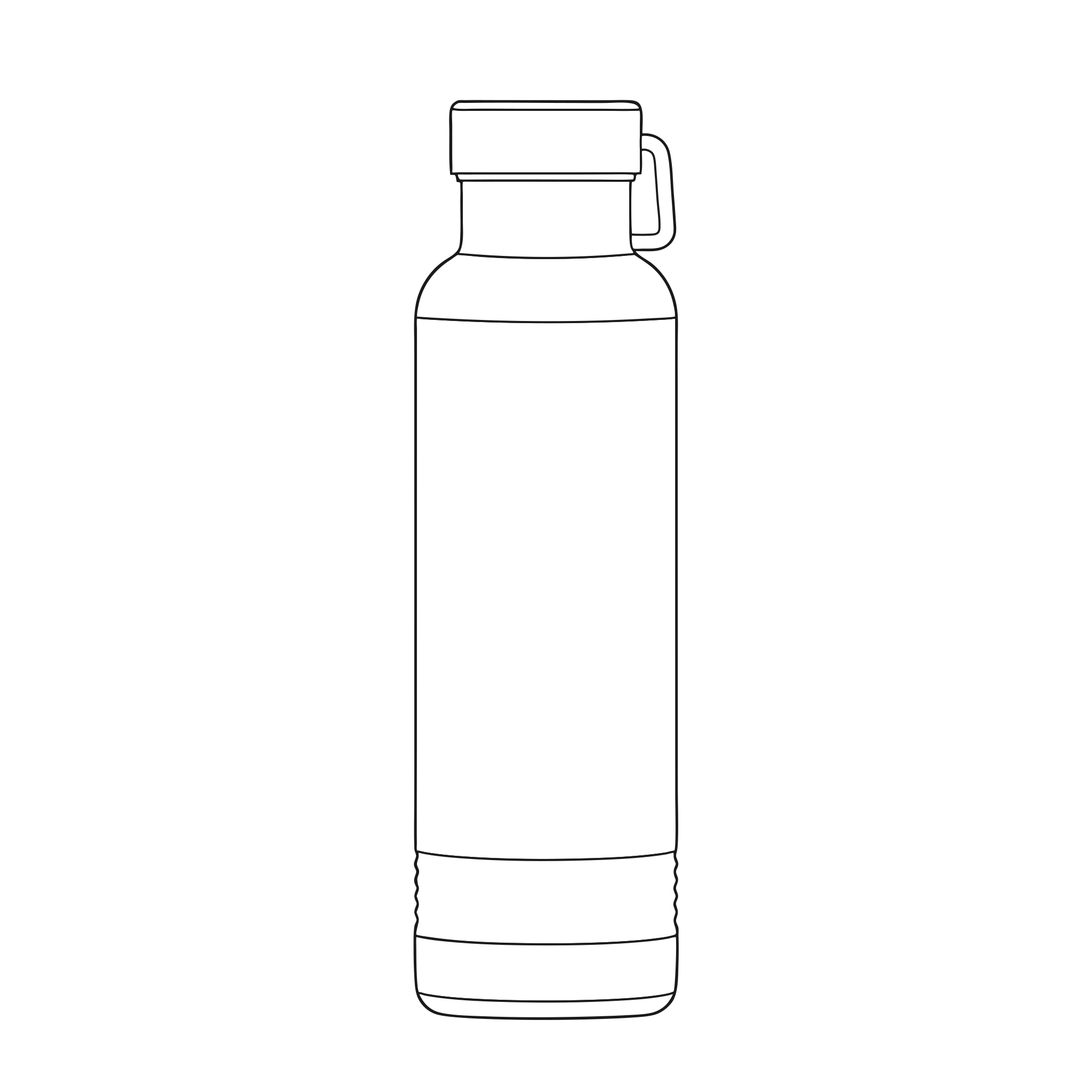
From product image to editable vector line drawing
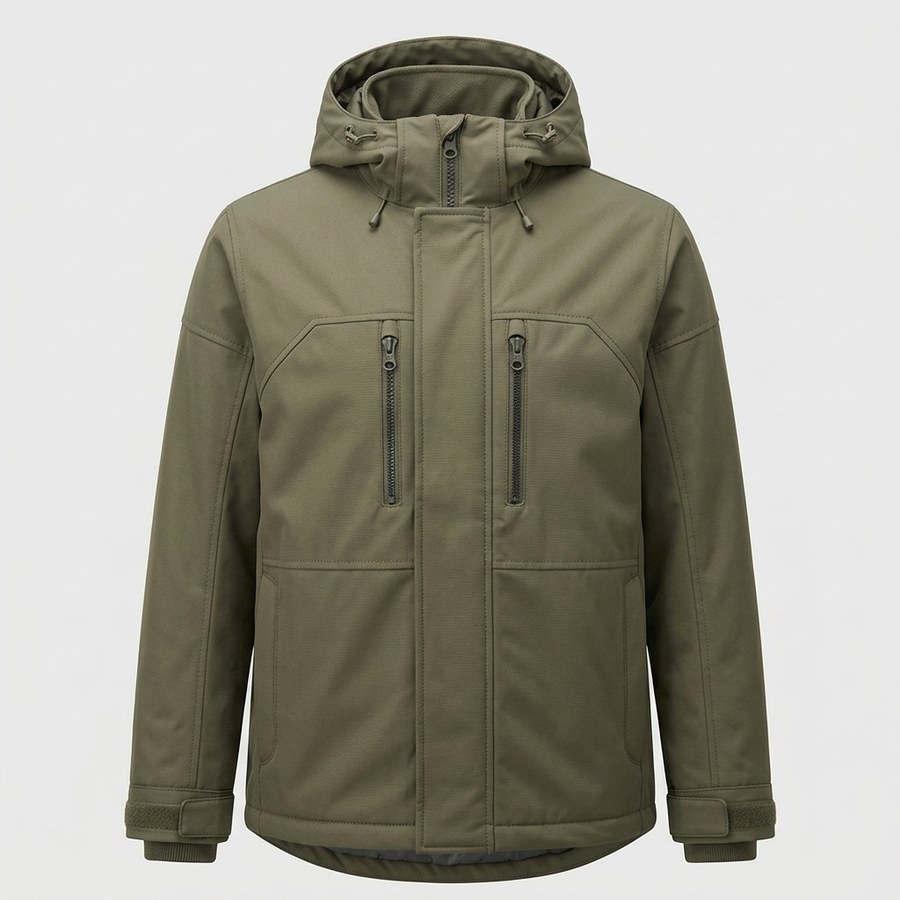
Start with a product image
Generate one in NewArc or upload your own. Already have a sketch? Skip to step 3.
Turn it into a sketch
Use Image to Sketch with color turned off to get a black and white technical sketch.
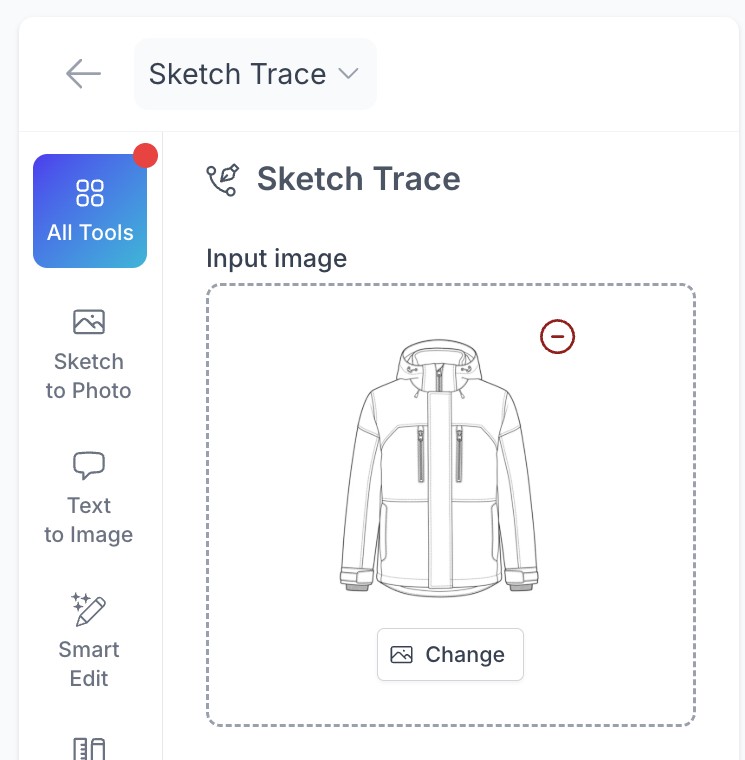
Run Sketch Trace
Open the 'Sketch Trace' tool, add your sketch and click 'Generate'.
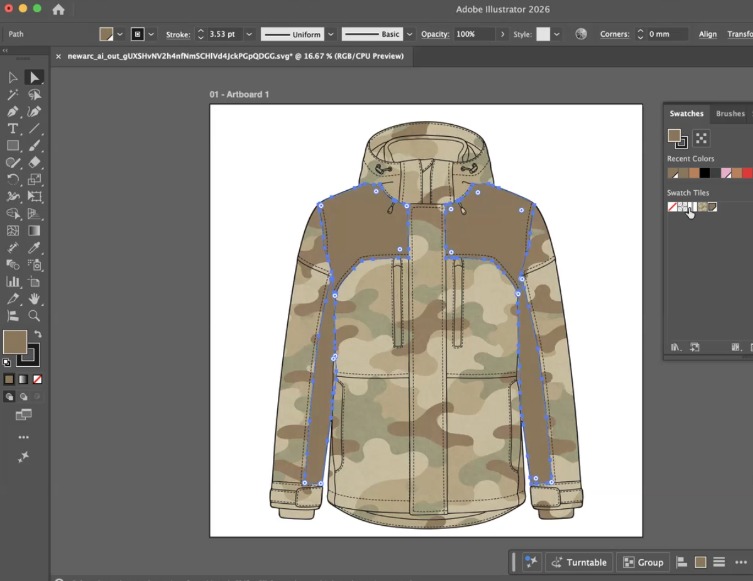
Edit in Illustrator
Adjust lines, recolor panels and apply prints and patterns exactly where you want.
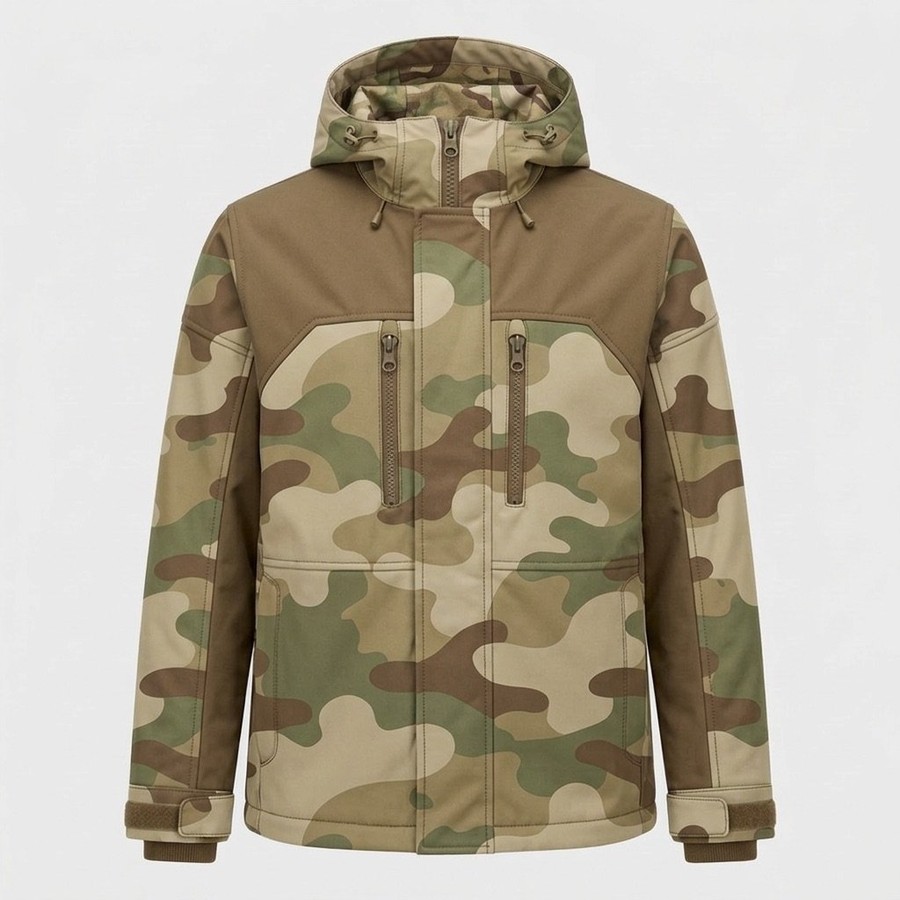
Keep developing
Use your vector sketch as it is, or export it as a PNG or JPG and bring it back into NewArc as the starting point for your next design.
Edit with ease
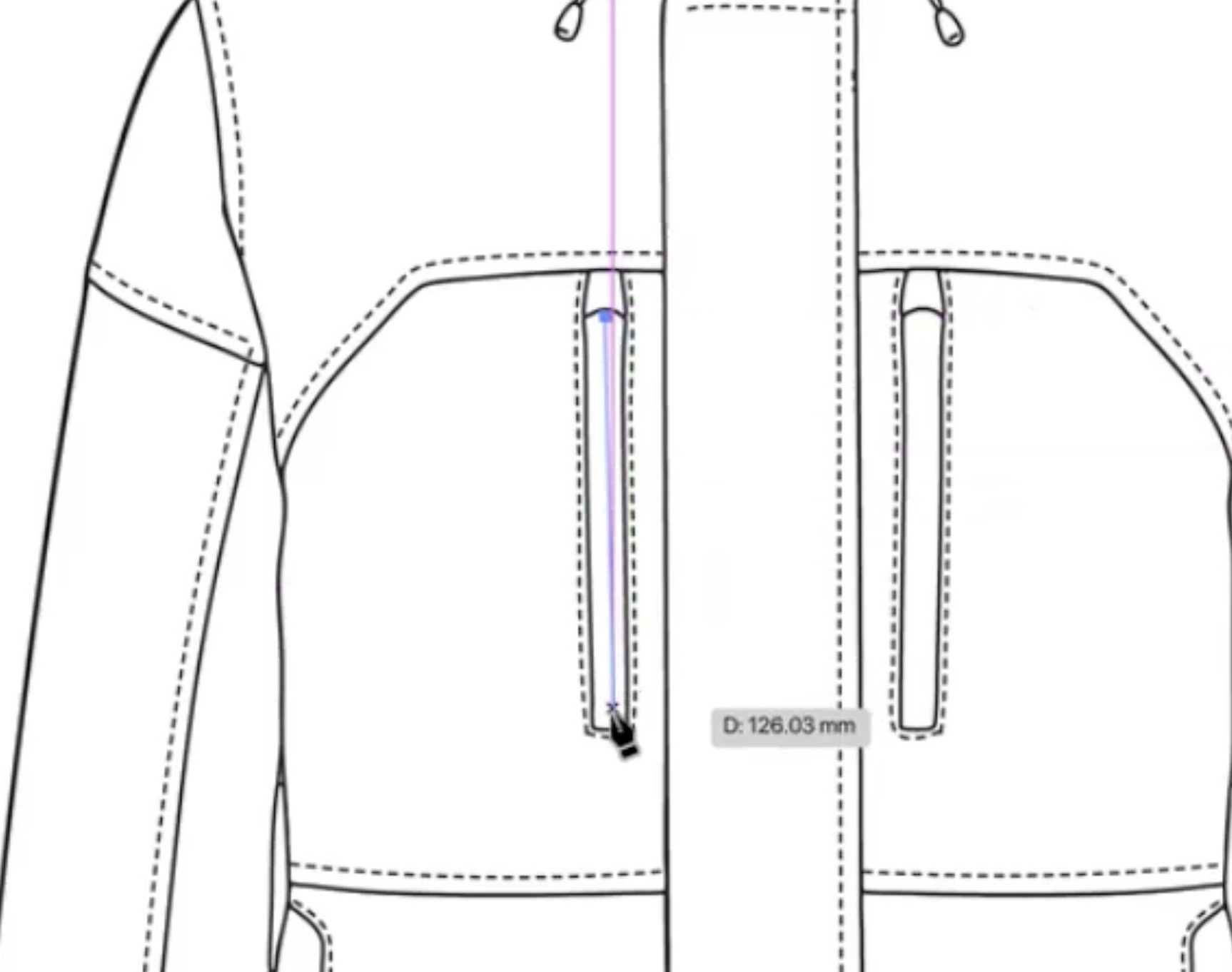
Sketch Trace converts your sketch into editable vector paths, following the center of each line rather than creating outlined shapes. You get real vector paths with editable anchor points, the same as if you'd drawn them in yourself.
Move endpoints
Select any line and drag its end to a new position.
Reshape curves
Adjust anchor points to change the curve of a seam.
Change stroke properties
Set the weight or color of any line in a click.
See it in action
Recolor, add print and color block
Because every panel is separate, design changes take a few clicks.
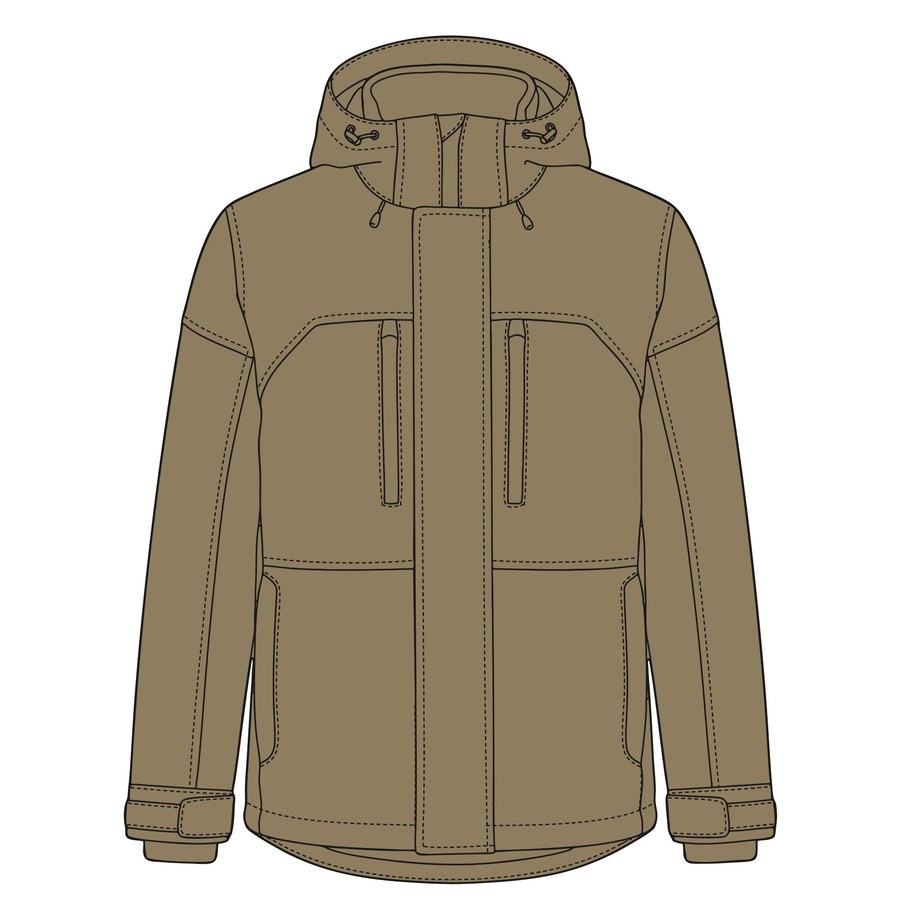
Recolor the whole product
Select one panel. Choose your Fill Color.
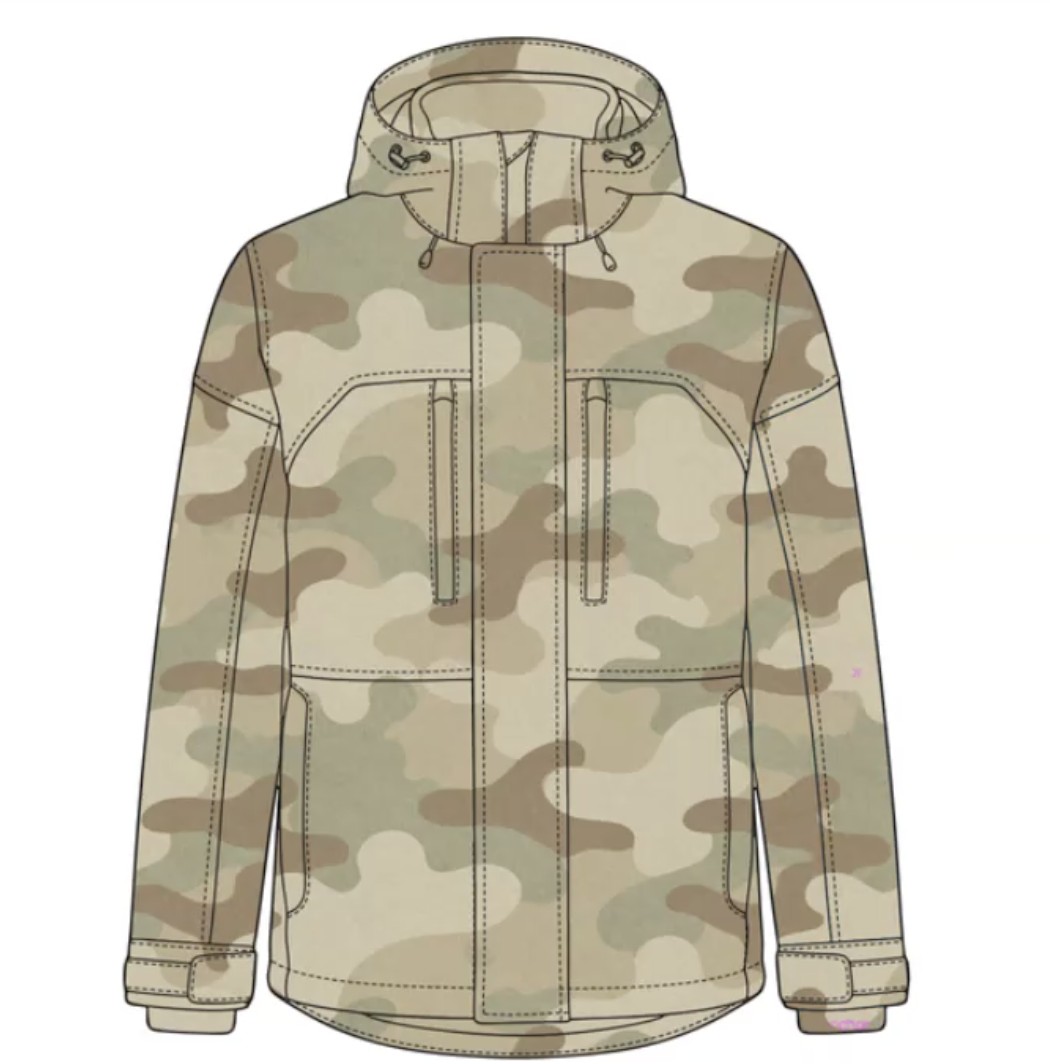
Drop in a print
Use the same selection to fill every panel with a print or pattern.
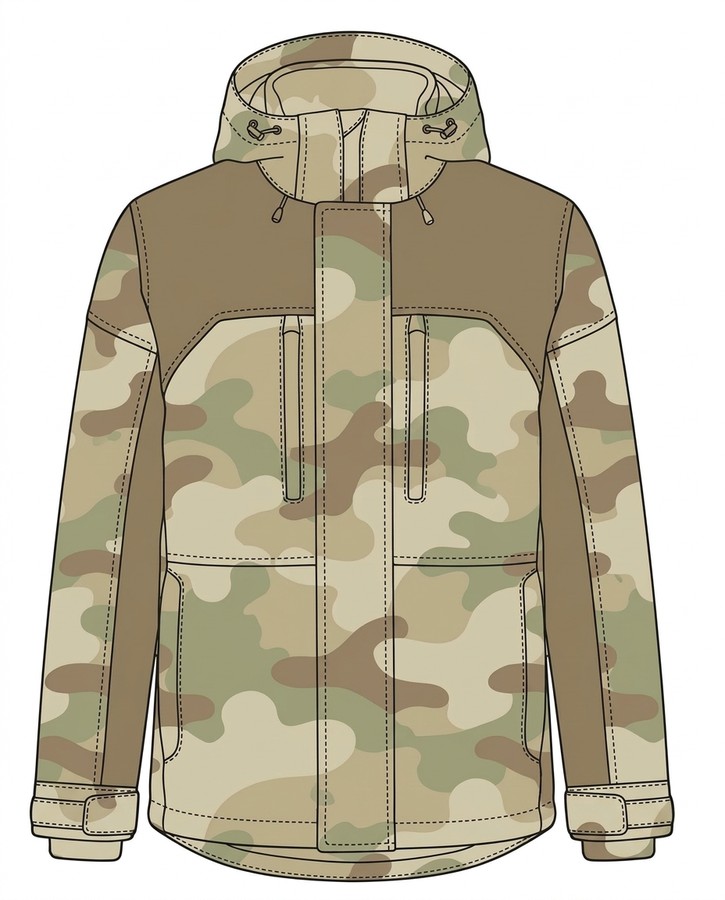
Color block panels
Select individual panels and change each one on its own.
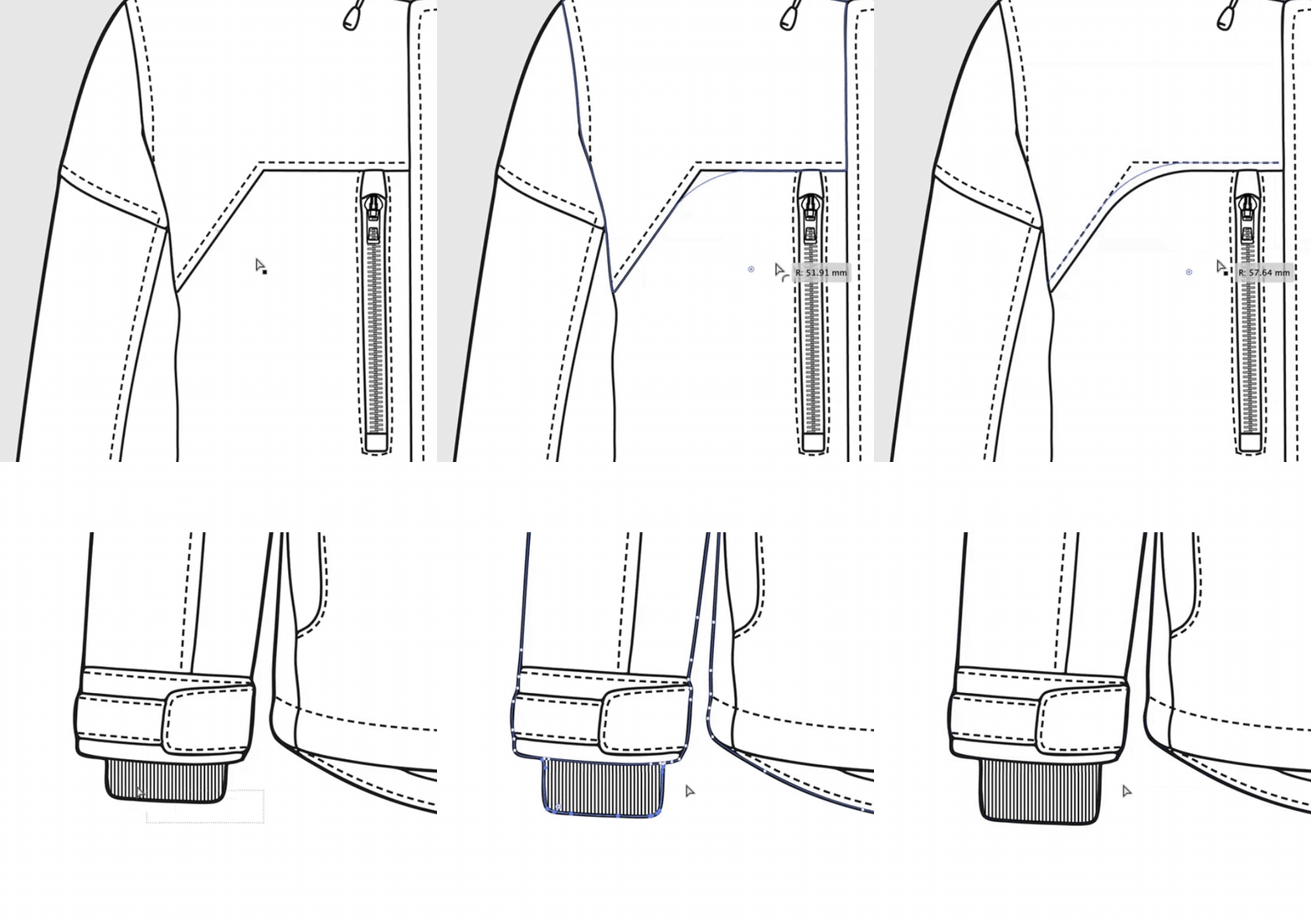
Customizing zips, ribbing and trims
Editable paths let you finish construction details with your own brushes, fills and swatches.
Example 1
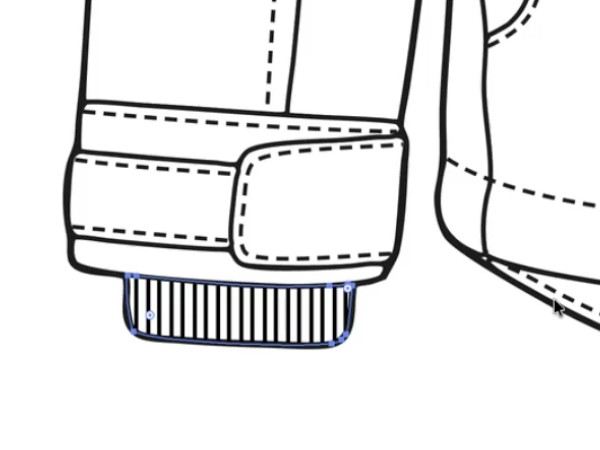
Add ribbing
Apply a ribbed pattern fill from your existing swatch library.
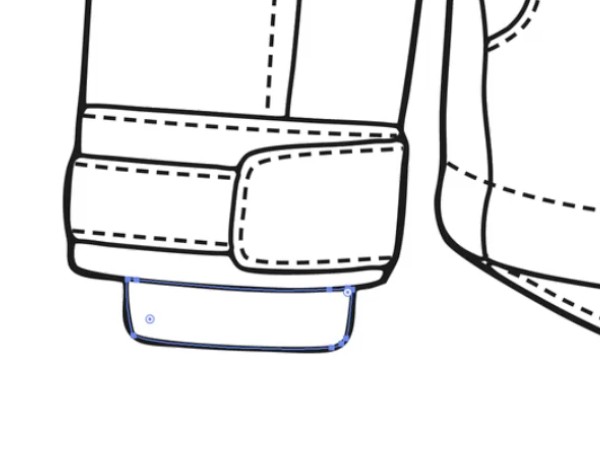
Example 2
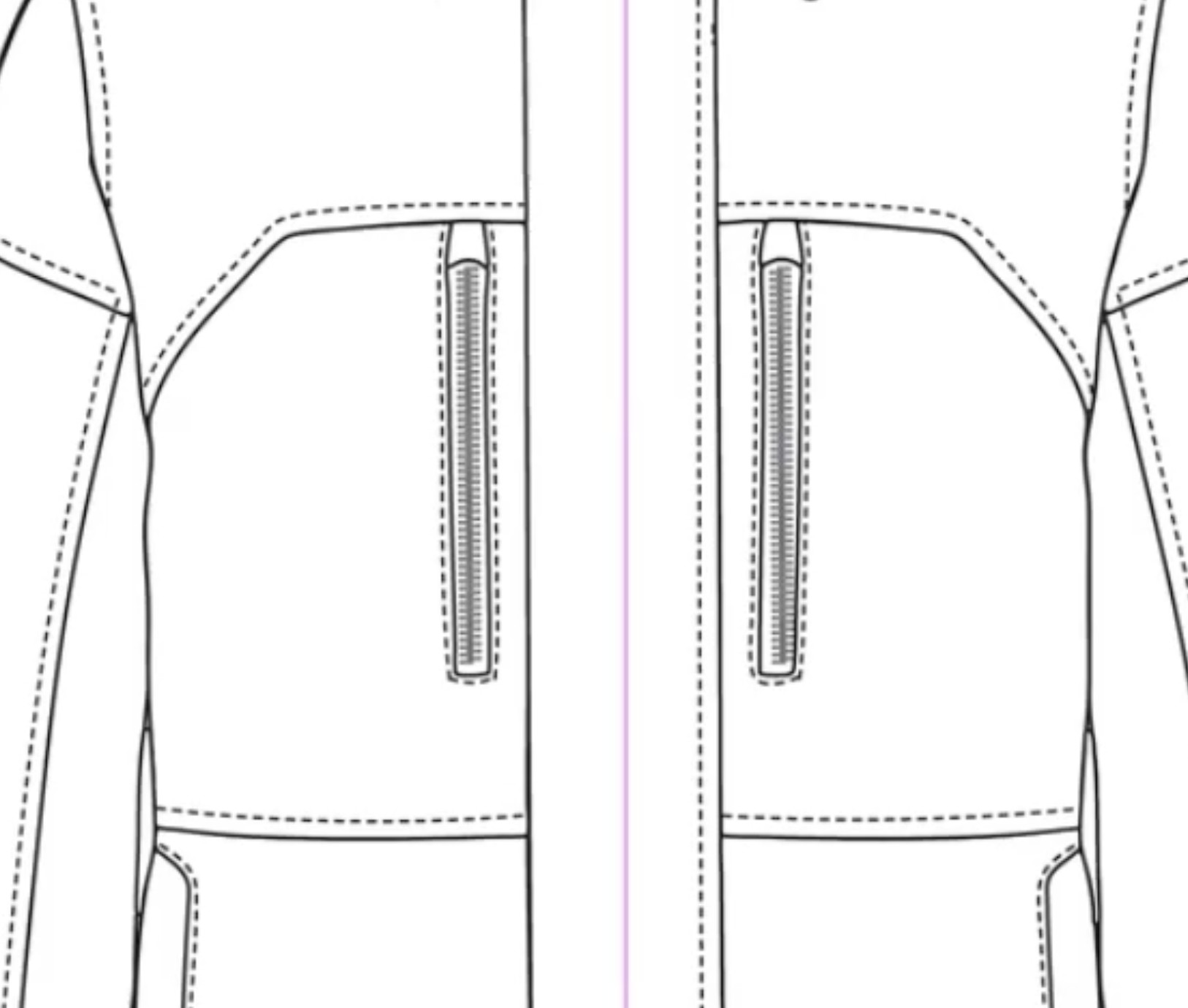
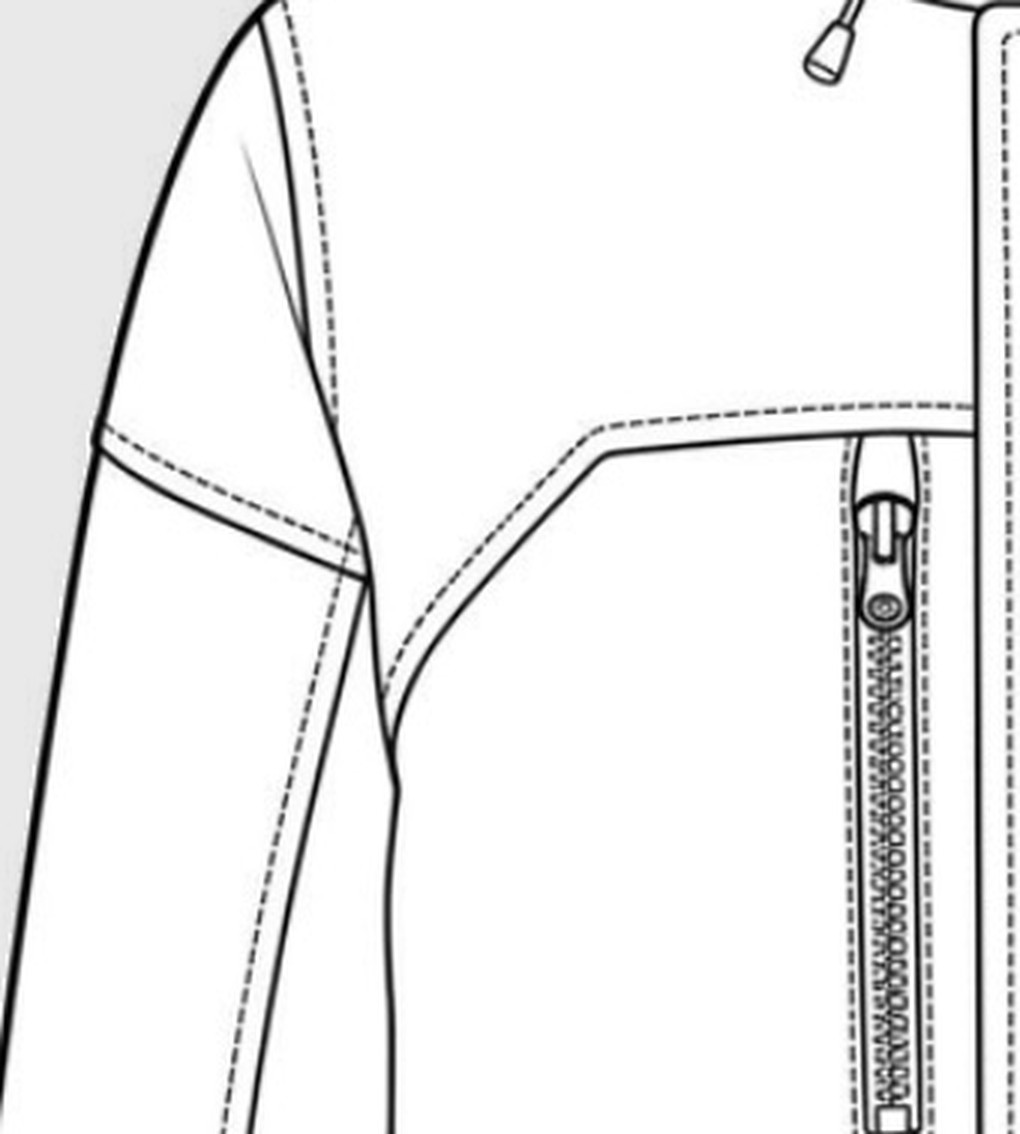
Customize zips
Draw or select a path and apply your preferred zip brush.